
Company services
Most services require you to have completed your Onboarding process.
Single sign-on (SSO)
Section titled “Single sign-on (SSO)”Keycloak is our central single sign-on. We use it for webmail, Nextcloud, Jitsi, the Pro6PP Admin CMS, and other company services.
Sign in with your d-centralize username or email address and your Keycloak
password. Manage your password and authenticator app under Account security
in the Keycloak account console.
Contact infra@d-centralize.nl if you have lost both your password and your 2FA
device.
When a service offers “Log in with d-centralize SSO”, that is Keycloak.
Company email
Section titled “Company email”Your username will be assigned by a d-centralize admin.
- Company email account
- {username}@d-centralize.nl
- Receive email through
imap.d-centralize.nl(TLS/SSL, port 993)- Send email through
smtp.d-centralize.nl(TLS, port 587)- Webmail
- https://mail.d-centralize.nl/SOGo/
Company emails and aliases are listed in the company data wiki.
App passwords for mail and calendar apps
Section titled “App passwords for mail and calendar apps”Webmail signs in through SSO (Keycloak), but mobile mail apps and desktop email, calendar, and contacts apps connect over IMAP, SMTP, CalDAV, and CardDAV, which can’t use your SSO login. Create an app password for them:
- Go to mail.d-centralize.nl/user and open the App passwords tab.
- Click Create app password.
- App name: name the device or app, e.g.
iPhone Mail. - Click generate to fill in a strong password (it appears in both password fields).
- Allowed protocols for app password: select what the app needs - IMAP and SMTP for email, CardDAV/CalDAV for calendar and contacts.
- Save, and copy the generated password.
In the app, use your full email address as the username and this app password in place of your SSO password.
Brand email addresses
Section titled “Brand email addresses”Your team membership can give you additional addresses such as
username@appsemble.com or username@itslanguage.nl. These addresses are
aliases of your primary username@d-centralize.nl mailbox:
- All incoming mail arrives in the same inbox.
- Sign in to webmail through d-centralize SSO.
- In a mail client, always authenticate as
username@d-centralize.nlwith the primary account’s app password. - Do not add each brand address as a separate IMAP account. Add it as another sender identity on the primary account.
In webmail, an assigned brand address appears in the From field when you write a message. Select the address that matches the company you represent.
Thunderbird Desktop
Section titled “Thunderbird Desktop”- Configure the primary
username@d-centralize.nlaccount using the IMAP and SMTP settings above. - Open Thunderbird menu > Account Settings and select the primary account.
- Click Manage Identities > Add.
- Enter your name and the complete brand email address. Keep the existing d-centralize outgoing SMTP server selected.
- Repeat this for every assigned brand address.
When writing or replying, check the From selector and choose the matching identity. Thunderbird usually selects the matching identity when replying to a message that was sent to one of your aliases. See Thunderbird’s identity documentation for the complete client options.
Thunderbird for Android
Section titled “Thunderbird for Android”- Configure only the primary
username@d-centralize.nlaccount. - Open Settings, select the account, then open Sending mail > Manage identities.
- Open the three-dot menu, select New identity, and enter the complete brand address.
- Repeat this for every assigned brand address.
Tap the address in the From field while composing or replying to choose an identity. Mozilla’s Thunderbird for Android alias instructions show the same identity flow.
For another mail app, look for a setting named identity, alias, or additional From address. It must use the primary account’s SMTP connection and login. If the app does not support sender identities, use webmail or Thunderbird when sending from a brand address.
Scam and phishing emails
Section titled “Scam and phishing emails”Sometimes you might receive an email that looks like it originates from
@d-centralize.nl, only for it to come from a malicious actor. If you
suspect something is fishy, check the sender’s email address to make
sure it actually comes from the person they claim to be. A general rule
of thumb is that people from d-centralize will send emails using their
@d-centralize.nl email address. If in doubt, contact the person in
question to verify the email using a channel which is not email, like
Mattermost.
Read more on how to recognize phishing emails: Phishing (Dutch Government)
Obviously you should not click any links in the email or reply to it. Just flag the email as junk/spam if your email client supports it, and delete it.
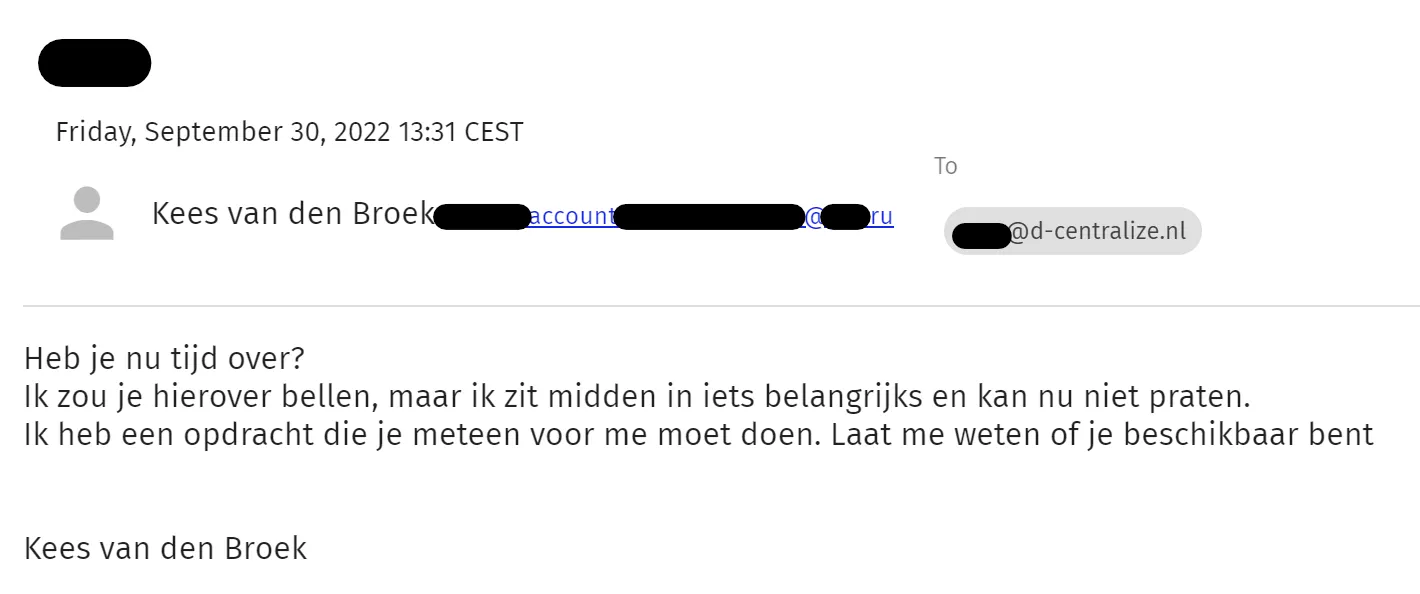
English transcription:
“Do you have some time now? I’d call you about it, but I’m in the middle of something important and can’t talk right now. I have an assignment that you must do for me right away. Let me know if you’re available”
Calendaring
Section titled “Calendaring”If you’d also like to use the calendar and contacts. You can use them through the above webmail portal as well as using the following links for use in other applications:
- CalDAV - https://mail.d-centralize.nl/SOGo/dav/username@d-centralize.nl/Calendar/personal/
- CardDAV - https://mail.d-centralize.nl/SOGo/dav/username@d-centralize.nl/Contacts/personal/
These connect over CalDAV/CardDAV, so they need an app password too.
Sharing
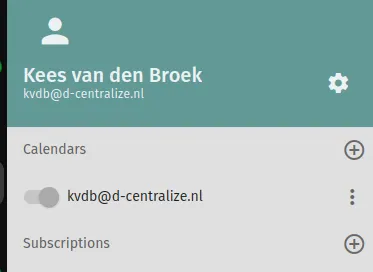
Section titled “Sharing”You can see and subscribe to the calendar of a co-worker from webmail.
Login, load your calendar and locate the + button next to Subscriptions. Click it and select a co-workers’ agenda.
Meeting scheduling
Section titled “Meeting scheduling”plan.d-centralize.nl is our booking tool: share a personal link and the people you want to meet pick a free slot on your calendar, without the back-and-forth emails. See Booking meetings with plan.d-centralize.nl for the one-time calendar setup and how to share your link.
File sharing
Section titled “File sharing”Our next server provides a personal folder to store files. It also provides access to shared project folders. Use it for persistent storage and shared project folders. Both can be accessed through:
- The web: https://next.d-centralize.nl/apps/files/ (to log in, use the button: “Log in with dcentralize SSO”)
- Through a WebDAV share: davs://next.d-centralize.nl/remote.php/dav/files/<username>
If you access these files a lot, spend a bit of time making a permanent connection from your OS.
Temporary file transfer
Section titled “Temporary file transfer”Use share.d-centralize.nl for temporary file sharing when the recipient only needs a download link and should not need an account. Sign in with your d-centralize account, upload the files, copy the generated link and send it to the recipient. Files expire automatically after about 60 days.
Use this instead of third-party transfer services like WeTransfer for normal company work.
Sharing outside the organization
Section titled “Sharing outside the organization”Through the web interface of our next server, files and folders can be shared with people outside our organization for collaboration efforts. Use Nextcloud here when the other side needs ongoing access or collaborative editing instead of a temporary download link.
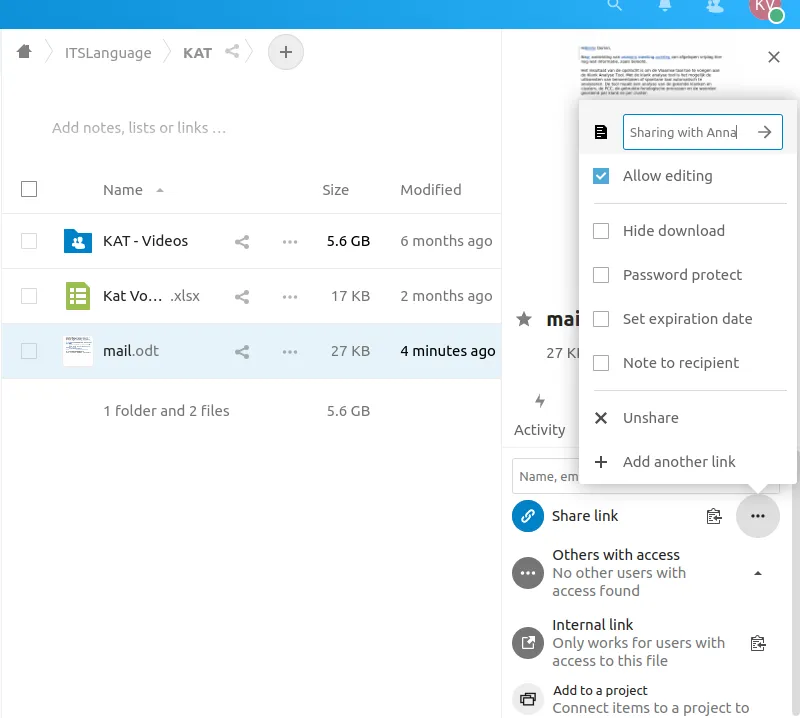
- Select the share properties of a file or folder.
- Click the three dots left of “Share link”.
- If you want the person you’re about to share with to edit, tick the “Allow editing” box.
- Fill in a note on top (the person and/or reason you’re sharing). That’s for ourselves to be able to get an overview of what content is shared out of the organization. Click the right arrow to finalize.
- Now click the copy icon right of “Share link (Sharing with Anna)”.
- Paste the link into an incognito browser window to test out if this is how you’d like the user to share with sees it.
- Send that link to the user to share with.
Credentials
Section titled “Credentials”Many services allow individual login accounts with roles. However, there are still cases where shared credentials are the only way to distribute access within the team. When invited by an admin, you can join our Vaultwarden service.
Secrets that applications and pipelines need, rather than people, live in OpenBao, our self-hosted secrets manager. CI jobs get short-lived credentials injected through GitLab OIDC instead of long-lived CI/CD variables, and unattended agents and scripts authenticate with AppRole. See the infra documentation to set up a role for your project.
Team communication
Section titled “Team communication”Instant Messaging
Section titled “Instant Messaging”Mattermost
Section titled “Mattermost”Mattermost is our primary team communication tool where you can also
meet your remote working colleagues. Aside from the general team
(dcentralize), a project specific team can be joined for project
specific communication. Also, bots post relevant messages here. Join
through Mattermost by signing in
with your d-centralize Gitlab SSO account.
Mattermost is chosen because of its open source codebase and default (but optional) coupling with Gitlab.
Mobile and desktop apps can be downloaded here.
Ubuntu installation instructions:
curl -fsS -o- https://deb.packages.mattermost.com/setup-repo.sh | sudo bashsudo apt install mattermost-desktopInstructions on logging into a self-hosted Mattermost server.
Inviting guests
Section titled “Inviting guests”The External team in Mattermost is designated to invite guests outside our organization.
For new topics, create a new channel of type Private channel. Next click the
button Add members to this private channel and invite them through email or send them the invitation link.
Please archive channels once they’re no longer in use.
Discord
Section titled “Discord”The Appsemble team uses Discord which is convenient to join for external guests: (Appsemble).
IM Bridge
Section titled “IM Bridge”It’s convenient to have a wormhole for messages to travel from Mattermost to
Discord and vice versa.
That’s the #bridge channel on Mattermost and #mattermost-bridge on Discord.
Video conferencing
Section titled “Video conferencing”Besides having textual conversations with your coworkers, having video calls is also very convenient way to also see each other. We run our own Jitsi for video conferences.
Sign in through Keycloak to host a room and share its link with the people you
invite. Guests wait in the lobby until you start the room, and a room name
starting with dc- is employee-only. See
Stable meeting links for the
host and guest URLs.
When in doubt if you have audio/video problems, just check your setup with the echo server
Public tunnels
Section titled “Public tunnels”Expose a local or staging service on a public *.tunnel.d-centralize.nl
subdomain (for callbacks, demos, temporary external access) with our
Pangolin tunnel. The quickest way is
the tunnel.sh helper; see the Pangolin tunnel guide.
Regular VPN
Section titled “Regular VPN”We maintain a VPN subscription from a commercial VPN provider for several uses:
- For employees working outside the Netherlands who need to appear as Dutch for security reasons while working on client projects.
- For deliberately obtaining a remote presence to test out regional differences in our SaaS.
Installing this browser extension makes it easy to use.
Company VPN
Section titled “Company VPN”Some of our internal services are locked to a set of IP addresses for access. In case you’re working remotely your traffic is rerouted through the office router.
To use the company VPN, you have to configure your device to create a WireGuard VPN tunnel.
Linux (Ubuntu)
Section titled “Linux (Ubuntu)”-
Open your Terminal and install WireGuard apt package:
Terminal window sudo apt install wireguard -
Download the
vpn.conffile your admin provides you.
Now choose either GUI or CLI config:
GUI config
Section titled “GUI config”-
Open NetworkManager
-
Add VPN
-
Import from file
-
Select
vpn.conf -
Add
-
Check if the tunnel is working. Go to a website showing your current IP. e.g.,
If the site shows IPv4 address 185.184.111.56 and the country is The Netherlands, then you are
connected to the VPN.
CLI config
Section titled “CLI config”- Copy it to
/etc/wireguard/.
sudo cp vpn.conf /etc/wireguard/- Activate the tunnel and your internet traffic will be rerouted through the company router
sudo wg-quick up vpn-
If you want to deactivate the tunnel, you can use the following command:
Terminal window sudo wg-quick down vpn -
Check if the tunnel is working. If the tunnel is working, you are going to see a new property in section
peercalledlatest handshake. This property will have a value representing the time of the latest handshake.
sudo wg showWindows / Mac
Section titled “Windows / Mac”-
Download the WireGuard app through the WireGuard website and install it
-
Download the
vpn.conffile your admin provides you and place it on your hard drive -
Open the WireGuard App, click on
Add tunneland import thevpn.conffile -
Type a name and the WireGuard tunnel will be created
-
Activate the tunnel via the Activate button and your internet traffic will be rerouted through the company router
To deactivate, please use the Deactivate button and your WireGuard tunnel connection will be turned off.
-
Check if the tunnel is working
- Option 1: If the tunnel is working, you are going to see a new property in section
Peercalled Latest handshake with value representing the time of thelatest handshake. - Option 2: Go to a website showing your current IP.
e.g., https://checkip.amazonaws.com/, https://whatismyipaddress.com/, https://ipleak.net/. If it shows
IPv4 address
185.184.111.56and the country isThe Netherlands, then you are connected to the VPN.
- Option 1: If the tunnel is working, you are going to see a new property in section
The WireGuard tunnel runs on Windows, not inside the WSL VM. Install and activate it with the Windows app (above) and check its status there; WSL traffic reaches the office through the Windows tunnel.
- Follow the Windows / Mac instructions above to install WireGuard and activate the tunnel.
- From a WSL shell, confirm internal services are reachable with the verification check below.
Android
Section titled “Android”-
Download the WireGuard app from the Google Play Store and install it
-
Scan the VPN configuration through the QR code your admin provides you
-
Type a name and the WireGuard tunnel will be created
-
Activate the tunnel via the toggle button and your internet traffic will be rerouted through the company router
To deactivate, please use the toggle button and your WireGuard tunnel connection will be turned off.
-
Check if the tunnel is working
-
Option 1: If the tunnel is working, you are going to see a new property in section
Peercalled Latest handshake with value representing the time of thelatest handshake. -
Option 2: Go to a website showing your current IP. e.g., https://checkip.amazonaws.com/, https://whatismyipaddress.com/, https://ipleak.net/. If it shows IPv4 address
185.184.111.56and the country isThe Netherlands, then you are connected to the VPN.
-
Route only specific apps (per-app tunnel)
Section titled “Route only specific apps (per-app tunnel)”By default the tunnel routes all the phone’s traffic through the office. If you only want certain apps to use the VPN — for example apps that reach IP-locked office services — you can restrict the tunnel to those apps and leave the rest of your traffic on your normal connection.
- In the WireGuard app, open the tunnel and tap the edit (pencil) icon.
- Under Applications (“Excluded/Included Applications”), choose “Include only these applications” and select the apps that should use the VPN — for example Bitwarden.
- Save and re-activate the tunnel.
Set a keepalive for per-app tunnels. When the tunnel only carries a few apps, set Persistent keepalive = 25 on the peer (edit the tunnel -> Peer -> Persistent keepalive). Without it the tunnel only establishes when an included app sends traffic, so an idle app (e.g. a locked Bitwarden) can leave it showing no handshake. Configs handed out by the onboarding tool already include this.
One config per device: never import the same config or QR on a second device, or both will silently stop working.
Verify your connection
Section titled “Verify your connection”On macOS, Linux, or WSL, one command checks whether your tunnel can actually reach our internal services — and tells you what’s wrong if it can’t:
curl -fsSL https://handbook.d-centralize.nl/vpn-status.sh | shA healthy tunnel ends with “Company VPN is working”. If it fails, the output
names the likely cause (most often DNS not going over the tunnel because another
VPN is still active) and the fix. Want to read it before running? The script is
at https://handbook.d-centralize.nl/vpn-status.sh.
Example vpn.conf file
Section titled “Example vpn.conf file”[Interface]PrivateKey = <Client-PrivateKey>Address = <IPv4 address>,<IPv6 address>DNS = <DNS address>
[Peer]PublicKey = <Public key of WireGuard interface>PresharedKey = <Client-PresharedKey>Endpoint = <Public IP of the system>AllowedIPs = <IPv4 address>, <IPv6 address>Advanced: Split Tunnel (Linux)
Section titled “Advanced: Split Tunnel (Linux)”By default, the company VPN routes all traffic through the office. If you want to keep the VPN always active but only route office traffic through it (split tunnel), you can use a NetworkManager dispatcher script.
How it works:
- Disables automatic peer routes (prevents default route from being added)
- When the VPN connects, the script fetches the route configuration
- It adds routes only for office resources (subnets and hostnames)
Installation:
Download and install the dispatcher script:
curl -o /tmp/99-wg0-split-tunnel https://handbook.d-centralize.nl/vpn/99-wg0-split-tunnel.shsudo mv /tmp/99-wg0-split-tunnel /etc/NetworkManager/dispatcher.d/sudo chmod +x /etc/NetworkManager/dispatcher.d/99-wg0-split-tunnelDisable automatic peer routes and enable autoconnect:
nmcli connection modify wg0 wireguard.peer-routes nonmcli connection modify wg0 connection.autoconnect yesReconnect to apply:
nmcli connection down wg0 && nmcli connection up wg0Verify:
# Should show your real IP (not VPN):curl ifconfig.me
# Should work (routed via VPN):ping 192.168.2.10
Check logs: journalctl -t wg0-split-tunnel
Software development
Section titled “Software development”GitLab
Section titled “GitLab”Project planning, issue tracking, code, CI is all kept in our gitlab. To join, create your personal GitLab login and ask a colleague to grant you access to the appropriate projects. Also see Git for further setup instructions.
Local LLM
Section titled “Local LLM”We have a local LLM service on the office network for internal development,
experiments, and day-to-day chat. It runs Ollama with Open WebUI on
neverturnoff2.
| Property | Value |
|---|---|
| Chat UI | https://chat.d-centralize.nl |
| API base URL | https://litellm.d-centralize.nl/v1 |
| Model name | local |
| Reachability | Chat UI: office network or VPN |
The chat UI works like chatgpt.com and signs you in with your d-centralize Keycloak account. If you do not write code, AI tools tells you when to use this and when to use Claude Desktop. The API is OpenAI-compatible. See the infra documentation for the installed models and server details.
The model has no internet access by default. For questions that need live
information (news, weather, current versions), enable Web Search for the
message: click the sliders icon next to the + in the message box and switch
“Web Search” on — the globe icon in the input bar turns blue. The toggle is
per chat; new chats start with it off.
Use it from backend services, scripts, and local development tools. Do not call it directly from browser code unless the browser itself runs on the office network or through the company VPN.
Using it in our applications
Section titled “Using it in our applications”export OPENAI_BASE_URL=https://litellm.d-centralize.nl/v1export OPENAI_API_KEY=<your app's LiteLLM key>Applications connect through the central LiteLLM gateway, the same endpoint
that serves our other model aliases: one virtual key per application, minted
by an admin and stored in Bitwarden. The stable local alias routes to the local
model server; the concrete model behind it may change. Ask in Mattermost or see the
infra documentation for
how keys are created.
Mind privacy when picking an alias: expect none on free (free-tier cloud
providers may log or train on prompts), reasonable on default/claude/gpt
(paid, but data leaves our infrastructure), and the best on local
(inference stays on office hardware).
Python example:
import os
from openai import OpenAI
client = OpenAI(    base_url=os.environ["OPENAI_BASE_URL"],    api_key=os.environ["OPENAI_API_KEY"],)
response = client.chat.completions.create(    model="local",    messages=[        {"role": "user", "content": "Summarize the latest deployment notes."}    ],)
print(response.choices[0].message.content)
If you need cloud-hosted models instead of the office/VPN-only service, use the
shared credentials from Bitwarden item
Azure AI - Shared API Keys and follow
AI assisted software development.
Coolify
Section titled “Coolify”Coolify is the self-hosted platform that runs our own and our clients’ applications. Ask an admin for access to the team of the project you work on. See Deployments for how to deploy through it and Coolify deployments when one fails.
Sentry
Section titled “Sentry”Sentry is the tool for “Application Performance Monitoring & Error Tracking”. Basically, if something crashes in production, the stack trace to investigate can be obtained there.
Weblate
Section titled “Weblate”Weblate is the tool for translating strings within a project.
It can be configured to automatically provide translations (using APIs to services like DeepL) but also allows manual
translations and general linting of language specific oddities.
An initial setup per project is needed.
Depending on the configuration, it usually monitors changes in the main branch.
It can then automatically translate source strings into several preconfigured target languages and provide a new MR
using the translations branch Weblate maintains.
Penpot
Section titled “Penpot”Penpot is our self-hosted design tool for wireframes and visuals. Sign in with the Login with OpenID button, which is our d-centralize SSO. See Media authoring for how we use it.
To let an AI tool read or export designs, create a personal access token (PAT) at Settings > Integrations.
Plausible
Section titled “Plausible”Plausible is our self-hosted “easy to use and privacy-friendly Google Analytics alternative.”
Information on shared company infrastructure (GitLab runners, router and such) is kept in the infra repo and is also available infra rendered.
Monitoring
Section titled “Monitoring”Grafana hosts our infrastructure monitoring dashboards (server health, GitLab runners, and service metrics). Log in with your d-centralize Keycloak account.
Service status
Section titled “Service status”status.d-centralize.nl is the uptime page for our own public services. Check it first when something looks down, before digging into a service yourself. Each client has its own page as well, such as status.pro6pp.nl and status.appsemble.com.
Gitlab runners
Section titled “Gitlab runners”We’ve got several (6 at the end of 2025) Gitlab runners available for running Gitlab jobs in Docker. You can define tags in a job to direct the job to any or a specific machine.
- No tags: Gitlab will prioritize a Gitlab hosted runner over our private runners.
saas-linux-small-amd64: Gitlab will only run the job on a hosted runner.dcentralize: Gitlab will only run the job on any of our private runners.sole-occupant: Gitlab will only run the job on any of our private runners that have a job limit per server of to 1. (3 runners at the end of 2025 are capped like this).
Cuda dev machines
Section titled “Cuda dev machines”There are 2 machines available for these situations:
-
When you laptop doesn’t have a GPU and you need that.
-
You have a long running task.
-
You need more memory or storage than your laptop supplies.
-
To access, ask an admin for a shell account. You get sudo (root) rights. You can only access the server from the office or from within the company VPN.
ssh 192.168.2.25 (cuda-dev, 40GB mem) or ssh 192.168.2.26 (cuda-dev2 64GB mem).
S3 storage
Section titled “S3 storage”We have several S3 buckets in Hetzner. To be used for backups, storing application data. To browse the contents of it:
S3_REMOTE_STORAGE_URL=fsn1.your-objectstorage.comS3_ACCESS_KEY_ID=<key>S3_SECRET_ACCESS_KEY=<secret>S3_BUCKET="<bucket name>"S3_CONFIG_NAME="hetzner-s3"rclone config create $S3_CONFIG_NAME s3 url $S3_REMOTE_STORAGE_URL vendor other access_key_id $S3_ACCESS_KEY_ID endpoint $S3_REMOTE_STORAGE_URL secret_access_key $S3_SECRET_ACCESS_KEY provider OtherThen to list all files in bucket:
rclone ls $S3_CONFIG_NAME:$S3_BUCKETOr serve a webserver so you can browse buckets and files in browser:
rclone serve http $S3_CONFIG_NAME: --addr :8080 --read-onlysensible-browser http://localhost:8080/Warning
Section titled “Warning”Don’t expect the server to be behaving well. There are several users on the machine, they all have root access so things can be messed up easily. Make sure you treat it as an experimental system and keep valuable data backed up elsewhere.