
Security
Lock your computer
Section titled “Lock your computer”Make sure to always lock your computer if you leave your desk. It is not about having or not having secrets. It is a good practice which easily prevents unwanted access to your computer while you are away. You should not rely on others while away. The computer you are working on is your own responsibility to keep safe and secure.
Every operating system can be configured with hotkeys or other handy shortcuts to lock your computer. For example on Windows you can use the Windows key + L to instantly lock your machine.
Taking data home
Section titled “Taking data home”If you want to take data home with you, that’s totally fine but make sure it is secure. Apply the following measures.
Firewall
Section titled “Firewall”Setup a system firewall. Here’s a practical tutorial.
Full disk encryption
Section titled “Full disk encryption”It is mandatory to apply disk encryption.
Here’s a practical tutorial.
Putting code on flash drives etc. is frowned upon. There are probably no valid reasons to take the risk of using flash drives.
Automatic updates
Section titled “Automatic updates”Stay up to date with the latest security updates. Here’s a practical tutorial.
Most systems within d-centralize enforce 2FA. It’s basically an extra layer of security on top of your first security layer: the password.
There are multiple ways of using 2FA. If you have no preference yet, the easiest way to get started is by installing the Google Authenticator app. This app will generate a code that you fill in after filling in your password. This code is always different, so an attacker stealing your password is now not enough to log in to your account, they would also need access to your smartphone.
Passwords
Section titled “Passwords”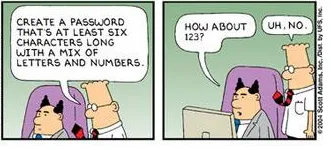
On sharing secrets
Section titled “On sharing secrets”A secret can be a password, a private key, or a set of security Q&A’s for example.
Whenever you create a secret for a project you’re working on, that may be relevant for a co-worker, make sure to enter it in Bitwarden.
Bitwarden
Section titled “Bitwarden”We manage all secrets of companies through Bitwarden, it allows fine-grained access control. Every employee should have received their own invite to the Vaultwarden service.
Collections: where credentials go
Section titled “Collections: where credentials go”Secrets are organised by company and sensitivity, so access stays least-privilege. When you create a secret, file it under the right collection:
<Company> - Tech— non-production engineering secrets: dev/local and review-environment credentials, non-prod API keys, developer tooling. All of that company’s developers (interns included) can see it. No staging or production secrets here.<Company> - Prod— staging + production + infrastructure: prod/staging databases and API keys, hosting, DNS, deploy/SSH/Kubernetes keys, monitoring, live payment keys. Restricted to a few trusted engineers per company.<Company> - Business: company ownership and operations outside engineering: domain registrar and hosting customer portals (account ownership; operational DNS, API, and deploy credentials for production stay inProd), marketing/social accounts, SaaS subscriptions, commercial accounts.<Company> - Project Management: shared project planning, delivery, and customer-coordination accounts required by the project-management role. Credentials limited to one client engagement stay in that client’sClient: <name>collection.<Company> - Billing: external, client-facing invoicing: e-invoicing portals and billing platforms used to send invoices to clients.<Company> - Finance: internal finance: bookkeeping, banking, accounting, taxes.General— shared, low-sensitivity credentials any employee may need.Design— shared design-tool accounts (Figma and the like).<Company> - Client: <name>— one client engagement’s credentials, visible only to the developers working on that client.
Companies are separate (Appsemble, ITSLanguage, Pro6PP, d-centralize, …); a
secret belongs to the company that owns or uses it. Choosing a collection:
company first, then sensitivity — non-prod Tech versus production Prod —
or, for non-engineering accounts, the most specific bucket: project planning,
delivery, and coordination go to Project Management; client invoicing goes to
Billing; books, banking, and taxes go to Finance; everything else goes to
Business. Collections control access: don’t use them as labels, and tie a
credential to a client via its Client: <name> collection rather than a note.
Access is granted through groups (for example Pro6PP - Tech), not
per-person, so a team change is a single membership update. Production access is
deliberately limited to trusted engineers.
Billing, Finance, and Project Management are roles: one cross-company access
group per role grants the corresponding <Company> - <Role> collections.
Project Management has no role mailbox. Each company has a billing@<domain>
shared mailbox whose credential lives in that company’s Billing collection,
so mailbox access follows the role membership. Each company’s
finance@<domain> address is a mailbox alias whose recipients follow the
finance role’s members automatically. Shared (non-personal) logins in the
Billing and Finance collections use the role address as their username, so the
account stays with the role when people change.
Browser plugin
Section titled “Browser plugin”It’s recommended to install a browser plugin to help you fill-in passwords for web forms.
Once installed, it’s recommended to configure the following:
Navigate to
Settings -> Options -> Default URI Match detection: host.
Desktop app and SSH agent
Section titled “Desktop app and SSH agent”You can also install an app for that:
curl -fsSL -o /tmp/bitwarden.deb 'https://bitwarden.com/download/?app=desktop&platform=linux&variant=deb'sudo dpkg -i /tmp/bitwarden.debrm /tmp/bitwarden.debUse the desktop app for SSH keys. Private SSH keys should be stored as
Bitwarden SSH key items, not as private key files in ~/.ssh.
Configure the desktop app:
- Log in to
https://vaultwarden.d-centralize.nl. - Enable
Settings -> Unlock with biometrics. - Enable
Settings -> Enable SSH agent. - Set
Settings -> Ask for authorization when using SSH agenttoAlways, orRemember until vault is locked. - Set the vault timeout to
1 hourand the timeout action toLock.
Configure the shell to use the Bitwarden SSH agent:
export SSH_AUTH_SOCK="$HOME/.bitwarden-ssh-agent.sock"Only public key files should be kept in ~/.ssh to help SSH select the right
vault-backed key.
Some scripts use the bw CLI tool to obtain credentials.
sudo snap install bwA one time configuration is needed:
bw config server https://vaultwarden.d-centralize.nlbw login# Sync is needed everytime you need recent credentialsbw syncNow enter your personal Vaultwarden credentials.
To prevent entering your password only once per shell session, you can persist
BW_SESSION by adding the following snippet to your .bashrc.
function bwu() { BW_STATUS=$(bw status | jq -r .status) case "$BW_STATUS" in "unauthenticated") echo "Logging into BitWarden" export BW_SESSION=$(bw login --raw) ;; "locked") echo "Unlocking Vault" export BW_SESSION=$(bw unlock --raw) ;; "unlocked") echo "Vault is unlocked" ;; *) echo "Unknown Login Status: $BW_STATUS" return 1 ;; esac bw sync}